Navigation: Part II - Enhanced Features > Add-Ons > Photo Album >
Album 2


|
Navigation: Part II - Enhanced Features > Add-Ons > Photo Album > Album 2 |
|
To use this Album, copy all files from ...\Add-Ons\PhotoAlbum\Album2 to a new directory. You may not rename the folder names.
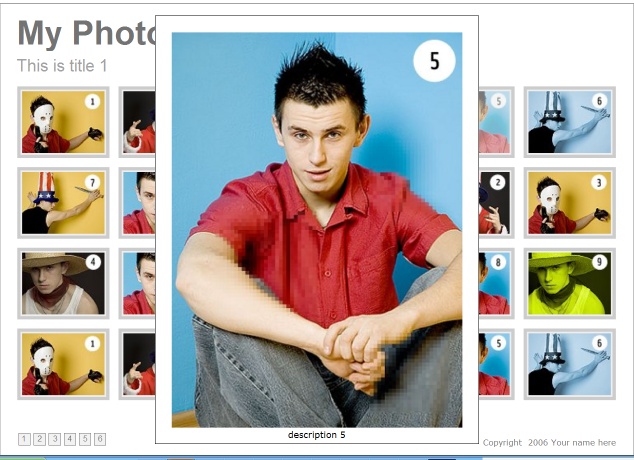
You can start the file gallery.swf to browse through the demo album.
Textlabels
The text, which appears on the album, can be modified with the files pictures.xml and personal_setup.xml
| • | Go to the folder ...\Add-Ons\PhotoAlbum\Album2\xml |
| • | Open the file pictures.xml with any xml Editor (notepad, Word) |
You can define a name per section / galleryname (<gallery name="1">) and you have to define each image you want to use
<image source="pics/pic1.jpg" thumb="pics/th1.jpg" descr="description 1"/>
whare source = the subfolder and big image name, thumb = name of small image, descr = title of the image
| • | Your personal settings can be configured in personal_setup.xml |
You will find a more detail description in one up the next updates of the online help
Images
The images have to be placed in a subfolder ...\Add-Ons\PhotoAlbum\Album2\pics and added in the pictures.xml file.
After adding all files, select the main folder Album1 to import it. Define gallery.swf as starting-file.
Look & Feel of the Album