Navigation: Part I - Learning the Basics > Getting started > Screen - Administration > Creating Keys >
Create Serial Number


|
Navigation: Part I - Learning the Basics > Getting started > Screen - Administration > Creating Keys > Create Serial Number |
|
After buying the product, a Serial Number is sent to the customer. It is the 'proof of purchase' and it is unique. To get a better idea of the workflow see Basics about Workflow.
The design of a key is described in Format of a Key.
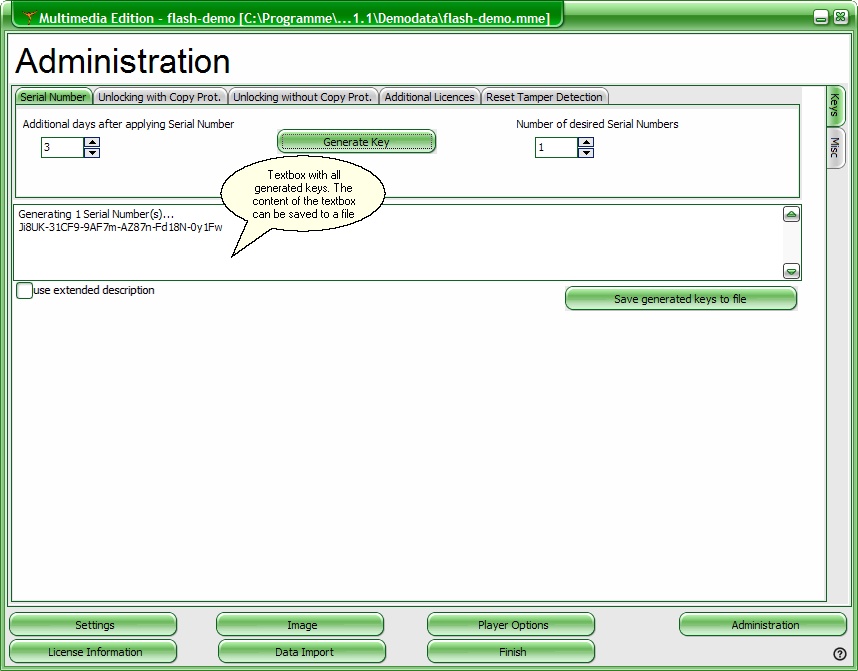
Allow additional days after applying Serial Number
If activation by e-mail, fax or phone is used, there is a time difference between applying the Serial Number key and sending the Unlock Key. To allow the customer to use the Multimedia Player after applying the Serial Number add a few days (typically 2-5 days) which are included in the Serial Number.
Number of desired Serial Numbers
Either generate one key per customer or generate a complete keylist with hundreds of keys. For details see About Keylists.
After pressing the button Generate Key, the key(s) including the extended description is/are copied into the textbox. If only one key is generated, then it is also copied into the clipboard. The content of the textbox can be saved into a file with the button Save generated keys to file.