Navigation: Part I - Learning the Basics > Getting started > Screen - Administration > Miscellaneous Administration Functions >
Check for Updates


|
Navigation: Part I - Learning the Basics > Getting started > Screen - Administration > Miscellaneous Administration Functions > Check for Updates |
|
This link opens the screen to configure the scheduler for updates. You can select one of the following options:
| • | Daily |
| • | Weekly (recommended) |
| • | Monthly |
| • | Never |
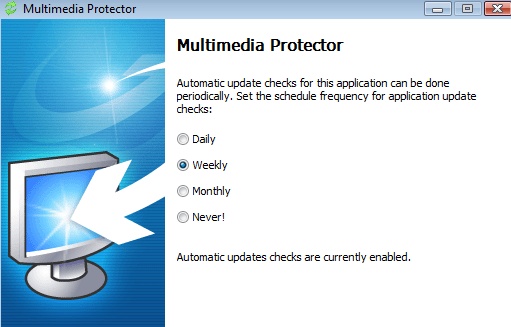 |
| Configure Scheduler for Updates |
The update check is done in the background and informs you if an update is available. It downloads the update and installs it automatically. This is the recommended way to install updates.
You can also check manually for updates on the website - click here for a manual check or use the option provided in the program manager group Check for updates.
To compare the latest update with the installed version, retrieve the version number with the About Multimedia Edition link.
To install an update, you need a valid update subscription. Check your license information with Show Licence Information.
The update check is also available in the Welcome Screen.
Page url: http://www.helpserver.biz/onlinehelp/lpmme/1.3/generator/help2000/index.html?check_for_updates.htm