Navigation: Part II - Enhanced Features > File Conversion / Supported File Types > Files needed Conversion > PDF >
PDF Conversion to Flash


|
Navigation: Part II - Enhanced Features > File Conversion / Supported File Types > Files needed Conversion > PDF > PDF Conversion to Flash |
|
We describe one tool more in detail. It is a collection of SWF manipulation and creation utilities - and it is free (released under GPL) - www.swftools.org.
Installation
| • | Download and install swftools-dev-win32.rar at http://www.swftools.org/download.html . If you cannot open .RAR files then download swftools-0.8.1.exe |
On the installation directory of Multimedia Protector you find a folder ..\converter\swftools. This folder contains ready to go batch files for conversion. Copy the file ..\swftools\pdf2swf.exe in this directory.
Batch file conversion
It is possible to convert all PDF files on a folder and all subfolders in a batch process.
| • | Copy all your PDF files to the folder ..\converter\swftools |
| • | Start convertpdf-batch.bat. It converts all files to flash |
 The PDF may not be password protected - all security settings must be set to none for the PDF file to allow a conversion.
Import Files
After converting all files to flash, copy only the flash files to a new directory which you would import. Use the Advanced Menu as described below
Adding a toolbar (browse, zoom, print)
The toolbar for the converted PDF file is provided by the Advanced Menu.
If you have just one PDF file then use the files provided in the folder ..\converter\swftools. You need 3 files for your project:
| • | Advanced-menu.swf |
| • | config.xml |
| • | doc.swf |
Rename your converted PDF file to docu.swf and import all files. Select the file advanced-menu.swf as start file and check the option: Use advanced menu. It will add browse buttons to navigate to the next page and a scroll bar to scroll through the page.
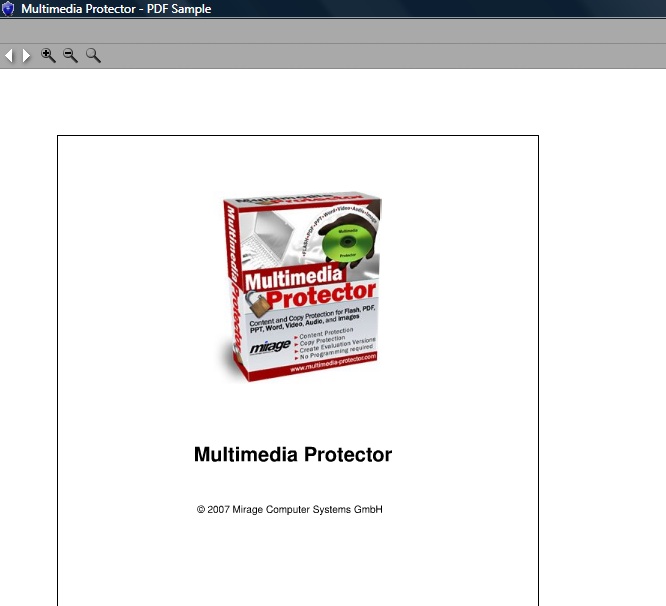 |
| View PDF file with toolbar |
It is possible to change different settings.
To add a print button edit the config.xml file (with any editor or use free XML Editor) and change the entry <print> to True.
|
To disable the zoom option, edit the config.xml file (with any editor or use free XML Editor) and change the entry <zoom> to false.
|
By default, the converted PDF is loaded with 100%. It is possible to start the document with another size like 150% or 75%. Edit the config.xml file (with any editor or use free XML Editor) and change the entry <zoomin> to eg. 150 (without % sign). |
 Download a sample - the Multimedia Protector Tutorial with over 200 pages and links inside the PDF document - converted with swftools and using the Advanced Menu - Click here to download and unzip the file to a folder. Start mp-pdf.exe.