Navigation: Part I - Learning the Basics > Getting started > Screen - Administration > Creating Keys > Create Serial Number Key >
Create one single Serial Number


|
Navigation: Part I - Learning the Basics > Getting started > Screen - Administration > Creating Keys > Create Serial Number Key > Create one single Serial Number |
|
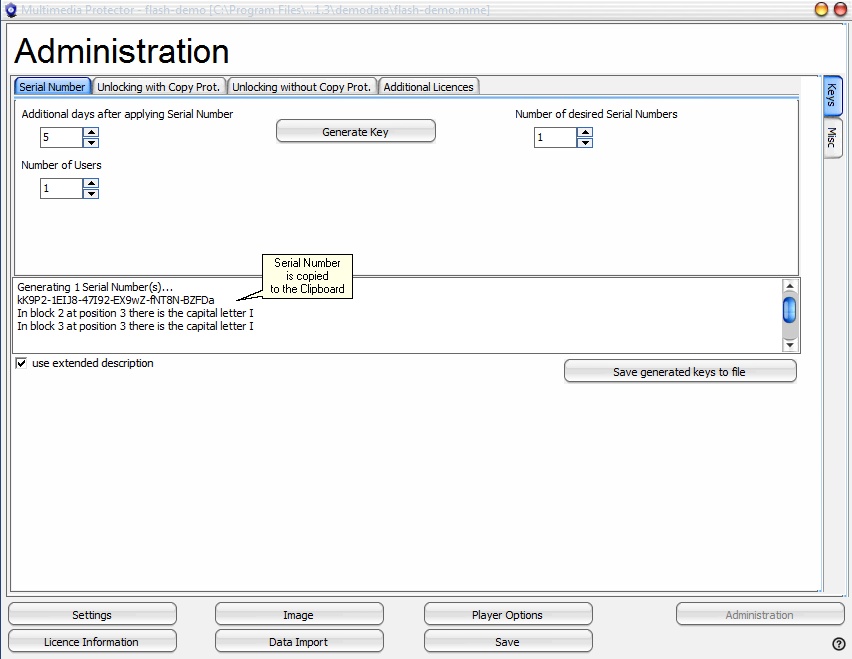
To manually create a Serial Number switch to the Administration Screen.
A Serial Number can be created with different options.
Allow additional days after applying Serial Number
If activation by e-mail, fax or phone is used, there is a time difference between applying the Serial Number key and sending the Unlock Key. To allow the customer to use the Multimedia Player after applying the Serial Number, add a few days (typically 2-5 days) which are included in the Serial Number.
Number of users
If a network license is used (more then 1 license per PC / user / concurrent user), the number of PCs / users / concurrent users can coded in the Serial Number. If the user buys later more licenses, send him and Additional Key.
 This value overwrites the existing value in the license file. If you have an evaluation version with 5 users and the Serial Number includes 1 user, this results in a license for one user after applying the Serial Number.
Number of desired Serial Numbers
Either generate one key per customer or generate a complete key list with hundreds of keys. For details see Create a Key List.
Create and Save Key
After pressing the button Generate Key, the key(s) including the extended description is/are copied into the text box. If only one key is generated, it is also copied into the clipboard.
The content of the text box can be saved to a file with the button Save generated keys to file.
See also
Create a Key List