|
Autorun MAX! |


|

|

|

|
|
Autorun MAX! |
|
|
|
|
This application can be downloaded at: http://www.autorun.com
The menu application creates an EXE (autorun.exe) file. This file (the menu application) is on the CD or in the download link and it is not protected (don't import it in the Multimedia Protector database).
Start Autorun MAX!.
Step 1 - Add the deploy folder to the Autorun MAX! project
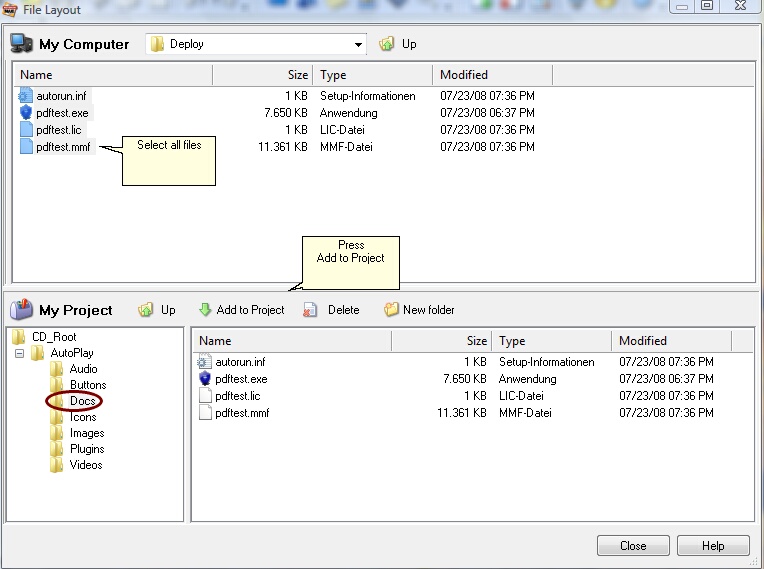
You have to add all files which should be included in the Autorun MAX! project. Select the menu Project, File Layout. In the upper part of the screen open the Deploy folder, select all files and add the files to the docs folder.
Step 2 - Define the file to start for each button
Now create your menu and add a button for each file you want to start, e.g. a button with Tutorial 1, Tutorial 2 etc. Then right click on the button and select Properties.
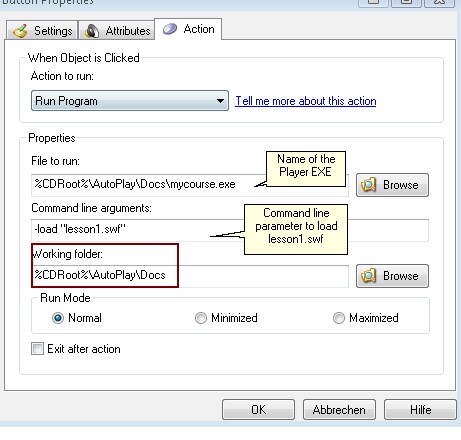
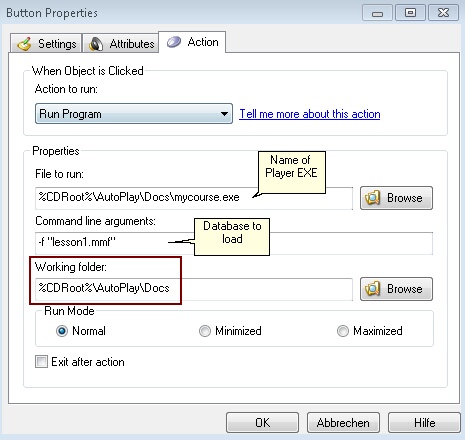
Select: Action to run: Run Program. In the line File to run add the path and the name of the Multimedia Player.exe file from the Deploy folder. In the line Command line arguments add the command to load a flash file or PDF file. See chapter Start a specific file inside the database to get all details for this command.
In the screenshot below, the file (Player) mycourse.exe is started and loads the file lesson1.swf.
The sample below starts the player with a different database. This feature can be used if you split the project into several databases.
 If you don't specify a command line, the main database (same name like the Multimedia Player) is started and the file, which is defined as start file, is loaded.
Step 2 - Build the CD or EXE file for download
In the menu, select Publish, Build. Then select Hard drive folder to test the project.
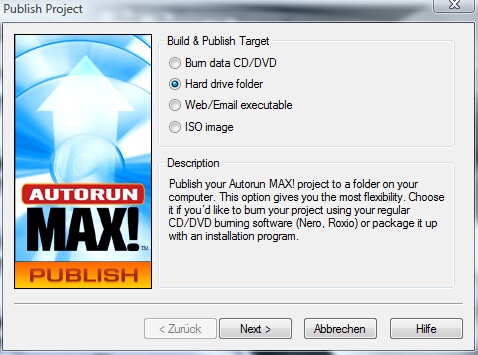
A good idea is to create a new folder, e.g. cd-project training 1
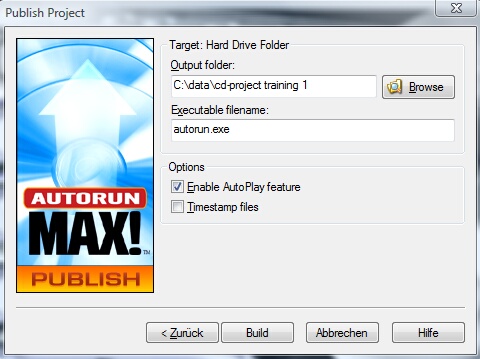
All your files are now copied from the Deploy folder to this new CD folder. Click on Autorun.exe to test everything.
If you have done all tests, you could either directly burn a CD or select Web / EMail executable to get an EXE file for a download.
 If you make any changes in the Multimedia Protector project, you have to rebuild the CD with Autorun MAX!
List of all start options for the player
See also
Start a specific file inside the database
Split project into several databases
All command line options
Additional Menus
Page url: http://www.helpserver.biz/onlinehelp/lpmme/2.1/generator/help2000/index.html?autorun_max.htm

