Multimedia Protector PDF Viewer options

  Deutsche Online Hilfe Previous topic Next topic JavaScript is required for the print function Mail us feedback on this topic! Mail us feedback on this topic!  


Multimedia Protector offers an inbuilt PDF Viewer, which supports PDF files until PDF version 1.7 (Acrobat 8). Not all features (like Multimedia content or forms) are supported - see details chapter PDF.

PDF Options

This screen allows you to configure the Multimedia Protector PDF Viewer - e.g. disable printing or add a thumbnail page.


The configuration options are on the left side.
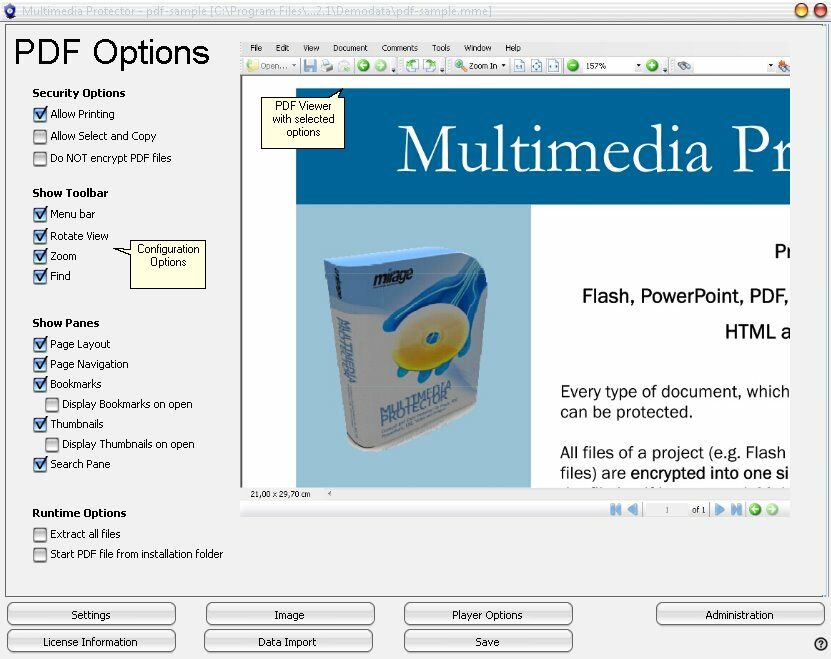
 

Security Options


Allow Printing - enable or disable the print button
Allow Select and Copy - this enables the option to copy and paste text from the PDF document
Do NOT encrypt PDF files - The PDF files are stored without encryption. This makes sense, if other applications like PowerPoint / EXE want to open the PDF file in a standard Reader (see start PDF files).
 

  If you change this option, you have to select Read files from folder in the Import Screen again.

Show Toolbar

Allows to enable a toolbar like zoom or find or to display a menu bar.


Menu Bar - enable or disable the menu bar (File, Edit, View etc.). This option is necessary if you activate a pane window like thumbnails. If the user closes this window he can open it again using the menu
Rotate View - enable or disable the option to rotate a PDF file
Zoom - enable or disable the zoom
Find - enable or disable the search functionality

Show Panes


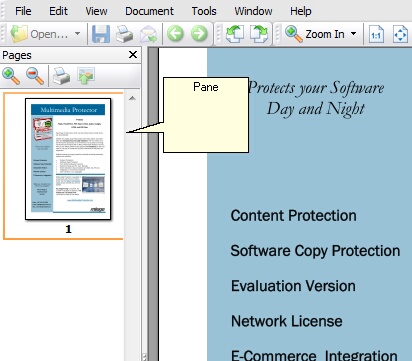
A pane is a small window on the left or right side (sometime on the bottom) of a PDF document.


Page Layout - enables multiple page viewing or continuous page viewing
 
Page Navigation - adds an option to browse through the document, displays the number of pages and allows to jump directly to a page

 
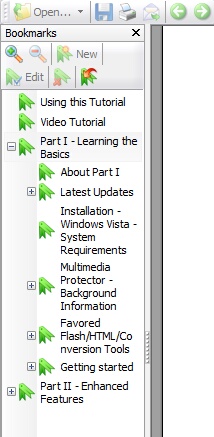
Bookmarks - adds a window to display the bookmarks. If Display Bookmarks on open is selected, this screen appears when the document is loaded. Otherwise it can be selected using the menu bar.

 
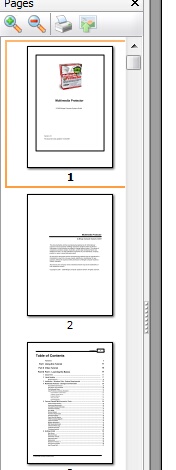
Thumbnails - adds a window to display a small preview of each page. If Display Thumbnails on open is selected, this screen appears when the document is loaded. Otherwise it can be selected using the menu bar.


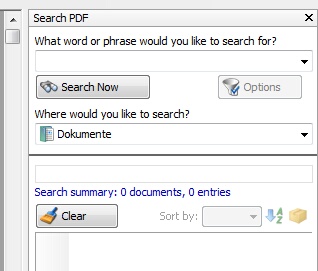
Search Pane - adds a window with extended search features


Runtime Options
Extract all files - by default, only the selected start file is extracted to a temporary folder. If multiple files are imported (PDF with audio, video) then all these files could be extracted but they are not protected. The PDF file is always protected


Start PDF from installation folder - this options allows to start an encrypted PDF file from outside the database. If a PDF file is bigger than 100 MB, the loading time is tool long on slow machines. This options stores an encrypted PDF file in the publish folder and the Multimedia Protector PDF Viewer starts the file directly from the folder. If you use the Installation Manager, you have to additionally copy the file, because it is not stored in the database.
 
If your PDF file has links to audio files, then you have to provide the audio file on the same folder. If you additionally select Extract all files, then all other files will be placed on the temporary folder.


MPPDFVIEWER%> uses the language of the operating system and not the language, which is defined for the Multimedia Player in the screen - Player Options.

Example: The registration dialogues of the Multimedia Player are in English, the operating system is in Russian, then then MPPDFVIEWER%> will start with Russian user interface.

Use Audio and Video inside a PDF file

It is not possible, to use an embedded audio or video file inside the PDF file but it is possible, to make a link to an audio  or video file.


Add a hyperlink in the PDF file to the audio or video file
Import all files (PDF, Audio, Video) and make the PDF file the start file
Check the Runtime Option, Extract all files


The Audio and Video files will not be protected. They run in the default player of the system.


The Multimedia Protector PDF Viewer needs administration rights during the first program start. The necessary components are automatically installed. You could also use the Installation Manager (set InstallPDFViewer=true).


Large PDF files

If a PDF file has more than 100 MB, select the option: Start PDF from installation folder . Details see Runtime Options

Page url: http://www.helpserver.biz/onlinehelp/lpmme/2.1/generator/help2000/index.html?multimedia_protector_pdf_viewe.htm