|
Album 1 |


|

|

|

|
|
Album 1 |
|
|
|
|
To use this Album, copy all files from ...\Add-Ons\PhotoAlbum\Album1 to a new directory. You may not rename the folder names.
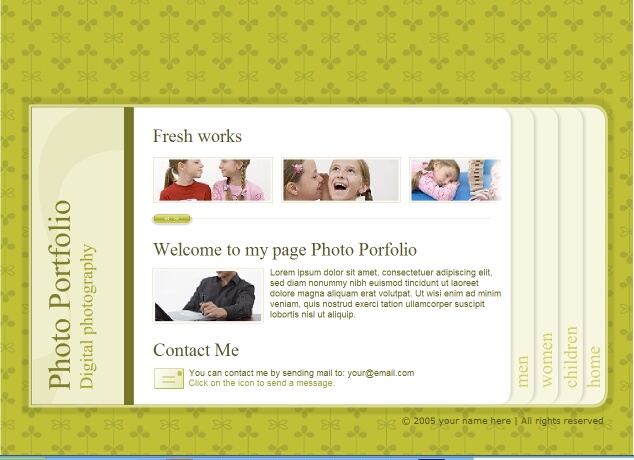
You can start the file photo-portfolio.swf to browse through the demo album.
 Never use a absolute path like c:\files which points to your disk drive on the PC. Always use a relative path like \img\flash\gallery_01.
Textlabels
The text that appears on the album can be modified with the file setup.txt.
| • | Go to the folder ...\Add-Ons\PhotoAlbum\Album1\Set |
| • | Open the file setup.txt and change the text |
You will find a more detail description in one up the next updates of the online help
Images
The images have to be placed on a subfolder for each section, which was defined in the setup.txt file with &title_section_1 or &title_section_2 (sample: &title_section_1=men)
For each section you need a subfolder ..\Add-Ons\PhotoAlbum\Album1\img\flash\gallery_01
To add images for gallery 1 (title_section_1 in the setup.txt)
| • | Go to the .\Add-Ons\PhotoAlbum\Album1\img\flash\gallery_01 |
| • | Delete the default images |
| • | Each image to add must be renamed: pic_1_gall_01_bg.jpg (picture 01, big) pic_1_gall_01_sm.jpg (picture 01, small) pic_1_gall_02_bg.jpg (picture 02, big) pic_1_gall_02_sm.jpg (picture 02, small) |
| • | Add your pictures for each gallery in the folder ..img\flash\gallery_01-img\flash\gallery_03 and for the Home Tab in img\flash\home |
After adding all files, select the main folder Album1 to import it. Define photo-portfolio.swf as starting-file.
Look & Feel of the Album
Page url: http://www.helpserver.biz/onlinehelp/lpmme/2.1/generator/help2000/index.html?photo_album_album_1.htm

