Navigation: Part II - Enhanced Features > Transfer a licence from PC A to PC B >
Transfer a licence using EasyGo


|
Navigation: Part II - Enhanced Features > Transfer a licence from PC A to PC B > Transfer a licence using EasyGo |
|
Add a new menu item (e.g. Help, Transfer Licence) within your application and make the following Source Code modifications.
Source Code integration
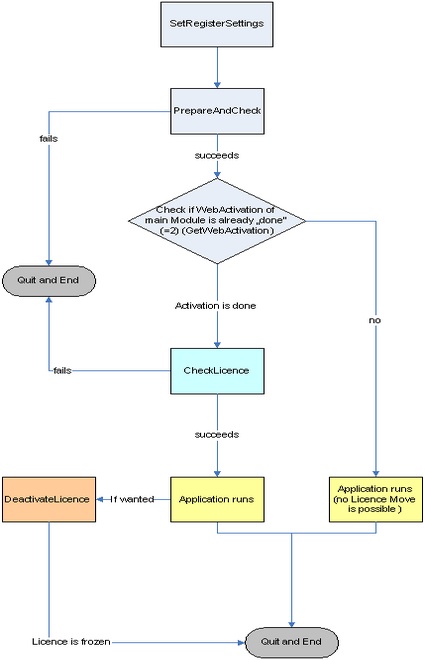
Within your Source Code you use the EasyGo commands and some additional checks.
| • | Open your licence file by starting EasyGo with PrepareAndCheck |
| • | Now check, if the version is activated (and not an evaluation version) by retrieving the activation status of the module using GetWebActivation. The return value must be 2 to indicate that the licence is activated. |
If return value = 2 (Activated Version)
| • | Retrieve the Serial Number using GetVal(<Main module>, “KYS”). You will get a list of all keys but only use the first key. This is the Serial Number |
| • | Now perform a licence check using CheckLicence and the Serial Number as ID. Product has to be the main module number and ForceCheck must be set to false |
| • | If CheckLicence is <>0 then terminate the application |
| • | Offer an option (menu item) to transfer the licence. If this option is selected, use DeactivateLicence to send the licence information to the Web Activation Server and terminate the licence on the local System |
If return value <> 2 (Version in Evaluation Mode)
| • | Do not offer the option to transfer the licence |
See also
Configuration Setting
What is happening inside the licence?