Navigation: Part II - Enhanced Features > Different Workflows - custom-made User Interface >
Licence File - Own Screens


|
Navigation: Part II - Enhanced Features > Different Workflows - custom-made User Interface > Licence File - Own Screens |
|
This workflow makes sense if you want to provide all screens in your own Look & Feel, you do not need online activation and you want to deliver a licence file.
This scenario works as follows:
| • | Evaluation Version with generic licence file. Use the same settings like EasyGo |
| • | Customer buys the product - the installation code is displayed in your screen |
| • | Installation code is transferred |
| • | A customer specific license file including copy protection turned on is generated and sent back to the customer |
| • | Customer copies licence file to the installation directory |
Create generic licence file
The generic license file, which is included in the installation package, has exactly the same settings like the file used with EasyGo. See Create Licence File.
Test Evaluation Version and display installation code
At the program start, implement the following code sequence
| • | SetLanguage - define language for all screens and error messages. Necessary even if you use own screens |
| • | Open the licence file with PrepareAdvanced - implement an own error handling. Error 1024 (copy protection violation) should allow to type in an Activation Key to switch copy protection type. Use PrepareForce to open the file and ShowLicViewer or an own user interface to provide the necessary information |
| • | Now test the main module with ValidateEX or ValidatesYes and check for time limitation with RemainingDays an/or ExpiredOn |
| • | If the status Activation is none (0) then the software needs activation. Retrieve the activation status with GetWebActivation |
| • | Display at least 2 installation codes (Hardware Ids) to register the software. Multiple codes are necessary in case one code can not be retrieved. Use GetInstcode to retrieve the code |
| • | If the status Activation is done (2) then the software is activated |
| • | To display errors you could use ShowStartErrorPage, which would also cover to view the licence and apply keys. You can retrieve a language specific error message with GetErrorMessage for your own dialogs |
| • | Use Quit at the end of the application |
Customer buys software
The customer has to transmit the 8 digit installation code. The next step is to create a customer specific licence file (using the customer name, the installation code and all the modules the customer has bought). It is important to set the field status of Activation to Done. If the full version should have no time limitation, set Valid number of days to 0, Demo version to No and all other modules to the customer specific values. Select the desired Copy Protection method and type in the installation code the customer sent to you. Each licence file gets a new licence file ID (like a serial number).
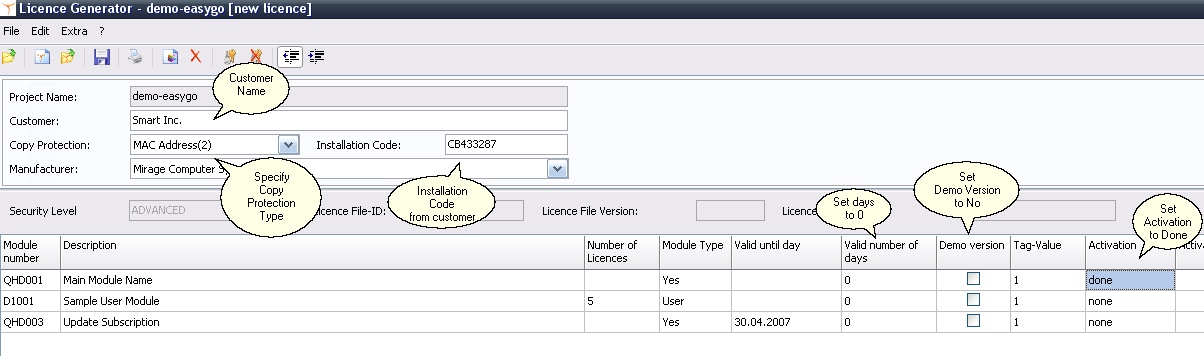 |
| Generator - customer specific licence file |
Now send the licence file to the customer. As the copy protection is already switched on, the file can only be used on the licensed machine and the customer just has to copy the file to the installation directory.
You can test a module using ValidateEX (recommended), Validate or ValidatesYes
For modules which are from type user, PC, concurrent, Item counter you can
|
Recommendations
You should provide a function to view the licence information. Either provide the Licence Viewer or implement an own viewer.
See also
Create own Licence Viewer
Page url: http://www.helpserver.biz/onlinehelp/lp/easygo/2.5/help2000/index.html?workflow_file_own_screen.htm
